Audio Setup: Difference between revisions
Jump to navigation
Jump to search

(Created page with "{{highlight|'''Passthrough on tvOS 11.3 is broken by Apple, none of the applications are able to use it.'''}} == AppleTV Settings == {{highlight|'''Apple TV -> Settings -> V...") |
No edit summary |
||
| Line 5: | Line 5: | ||
{{highlight|'''Apple TV -> Settings -> Video and Audio'''}} | {{highlight|'''Apple TV -> Settings -> Video and Audio'''}} | ||
: '''Surround Sound:''' Best Quality Available | : '''Surround Sound:''' Best Quality Available | ||
:: Forcing Surround Sound to "Dolby Digital 5.1" might solve issues with receiver that do not support multi channel PCM or if the setup uses [https://www.cnet.com/news/what-is-audio-return-channel-arc/ ARC] | |||
: '''Reduce Loud Sounds:''' Off | : '''Reduce Loud Sounds:''' Off | ||
: '''Audio Mode:''' Auto | : '''Audio Mode:''' Auto | ||
Revision as of 13:49, 11 April 2018
Passthrough on tvOS 11.3 is broken by Apple, none of the applications are able to use it.
AppleTV Settings
Apple TV -> Settings -> Video and Audio
- Surround Sound: Best Quality Available
- Forcing Surround Sound to "Dolby Digital 5.1" might solve issues with receiver that do not support multi channel PCM or if the setup uses ARC
- Reduce Loud Sounds: Off
- Audio Mode: Auto

MrMC Settings
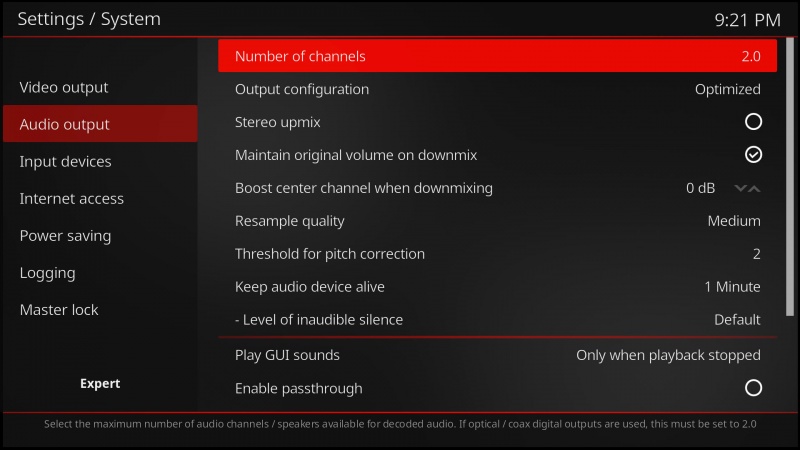
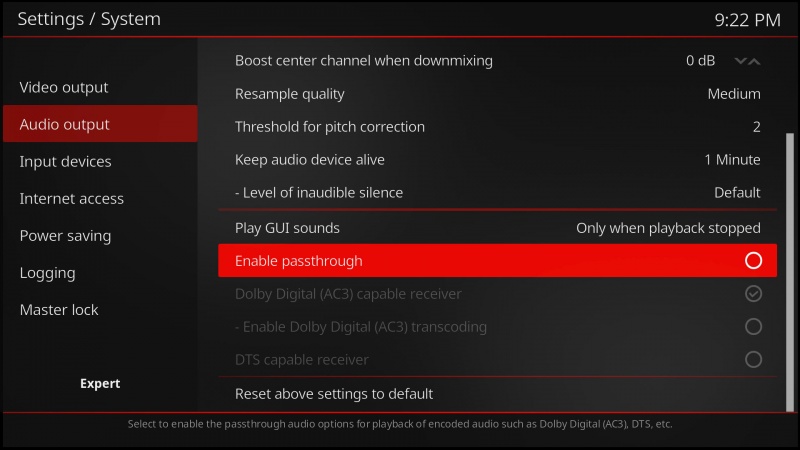
Settings -> System -> Audio output
- Number of channels: default 2.0 (stereo output), set according to your receiver/TV setup

- Enable passthrough: off
- Disabling passthrough will send uncompressed, multi-channel LPCM audio to Apple TV. This results in equal quality sound output, but receiver will not display DTS/DD light
